

You do not need a DAW open to sketch a song. Write a style prompt and lyrics in Claude, paste them into Music Studio, generate a short track, then refine sections in Edit Song if you want a second pass.
Open Music Studio
- 1
Open Music in AI Studio
From the sidebar, open Music in AI Studio — this is where you write the prompt, set lyrics, and generate the track.
Music tabLeft sidebar menuEkly AI Studio - Music Tab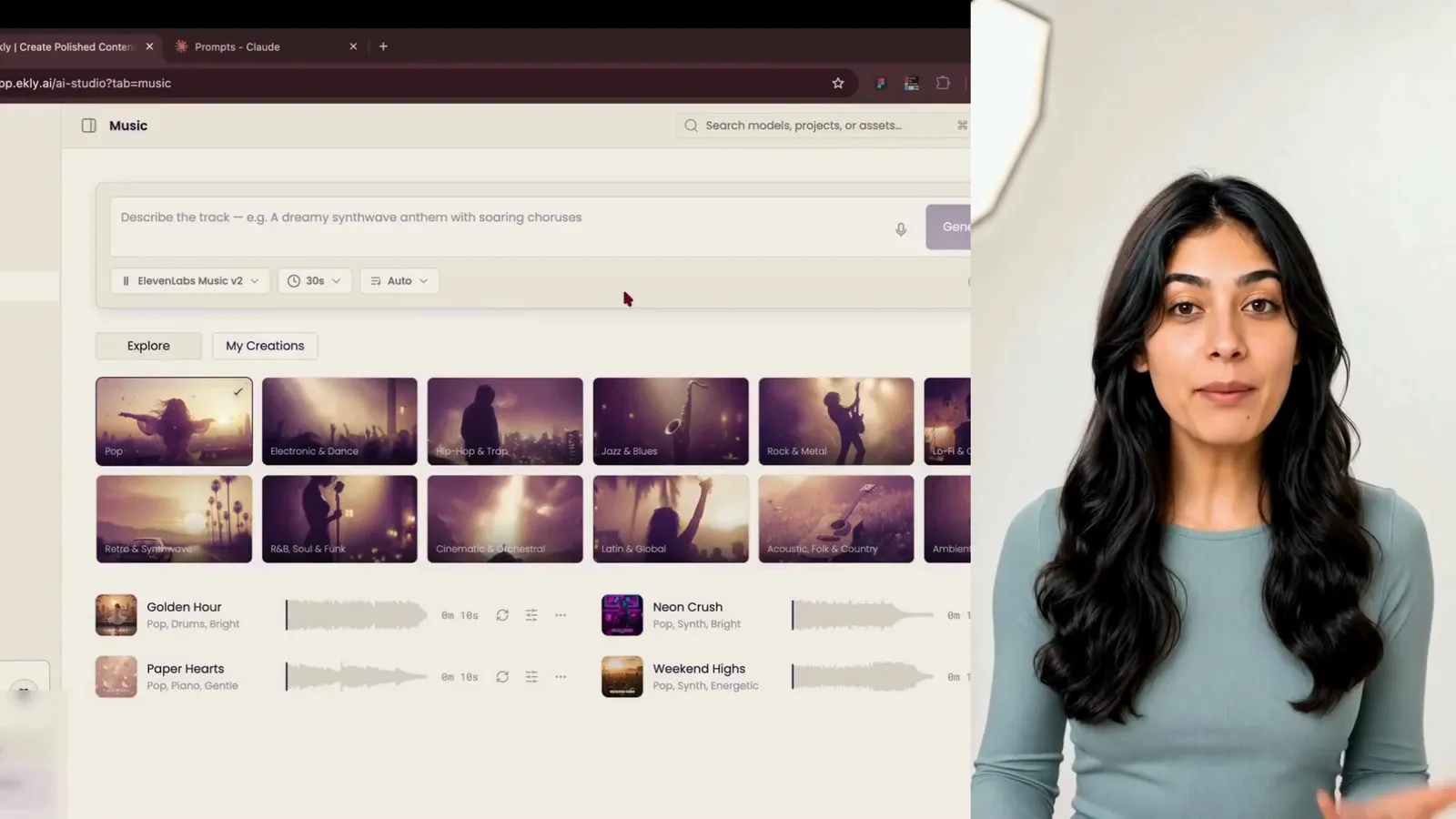
Step 1 “Hey everyone, today I'm going to show you how to make a song using Ekly's music section, from a quick AI-written prompt to a finished track.”
Style prompt and lyrics
- 2
Ask Claude for a style prompt and lyrics
In Claude or ChatGPT, ask for a music style prompt and matching lyrics for the kind of track you want.
Message input fieldClaude chat interfaceClaude AI Chat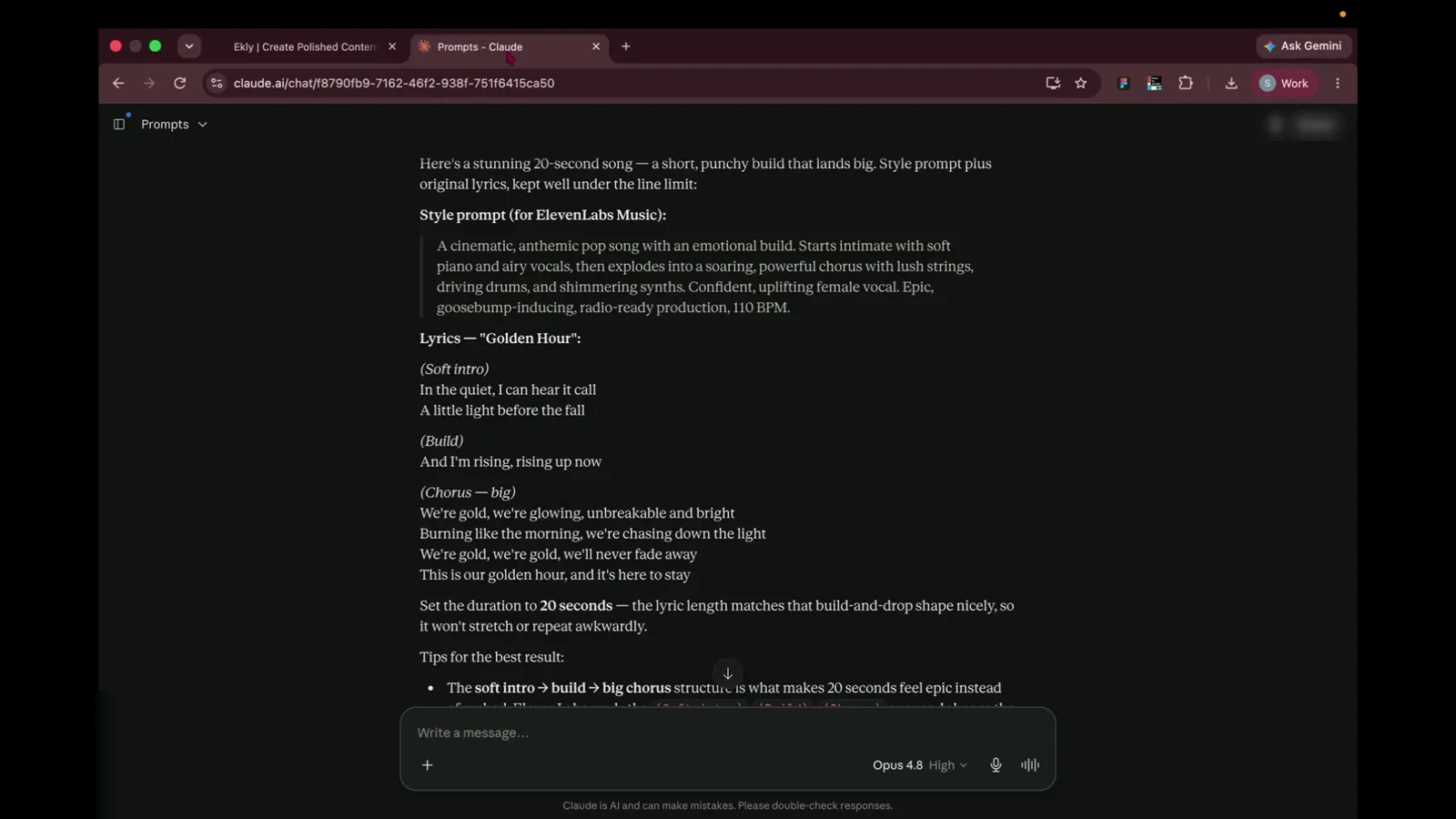
Step 2 “So the first step is we head over to Claude and ask it to generate us a prompt.”
- 3
Copy the style prompt
Select the Style Prompt block in Claude and copy it to your clipboard.
Style prompt text blockClaude response panelClaude AI Chat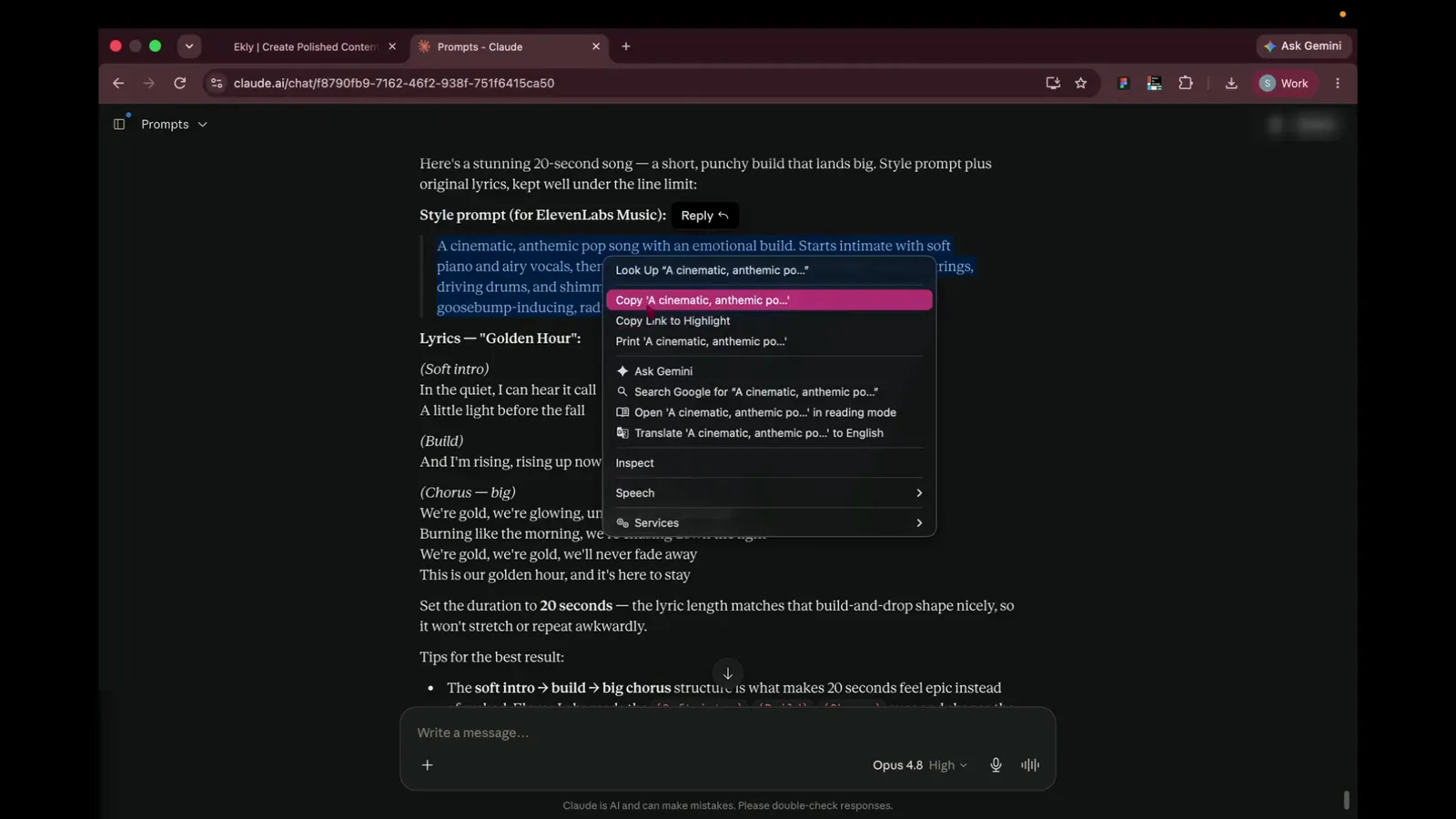
Step 3 “So we copy the style prompt, and we paste it here.”
- 4
Paste the style into Ekly
Back in Music Studio, paste the style prompt into Describe the track.
Describe the track text boxTop prompt formEkly AI Studio - Music Tab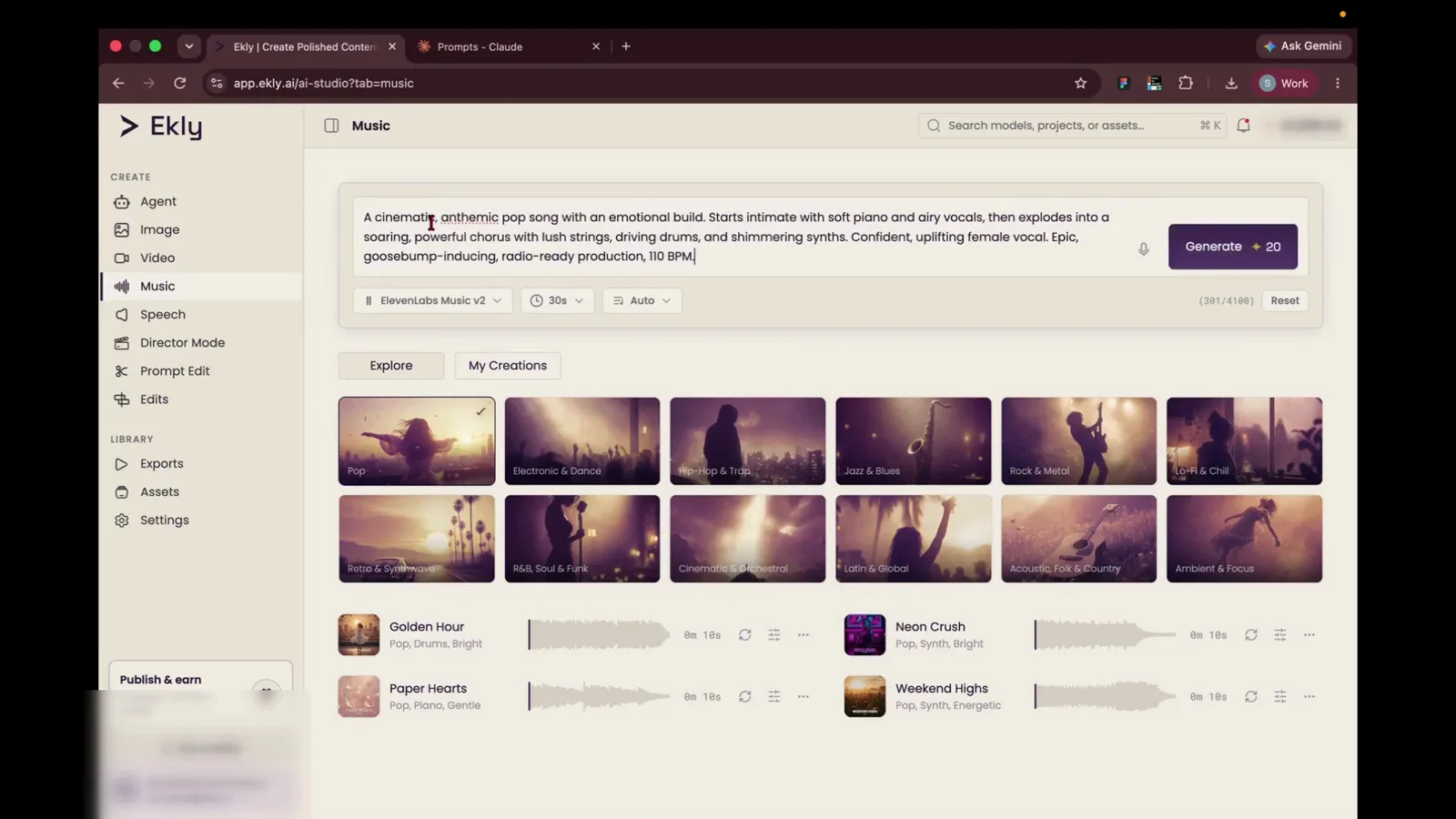
Step 4 “So we copy the style prompt, and we paste it here.”
- 5
Switch to custom lyrics
Open the mode menu (it may say Auto) and choose Custom so you can paste your own lyrics.
Custom optionMode selection dropdown menu below the main prompt boxEkly AI Studio - Music Tab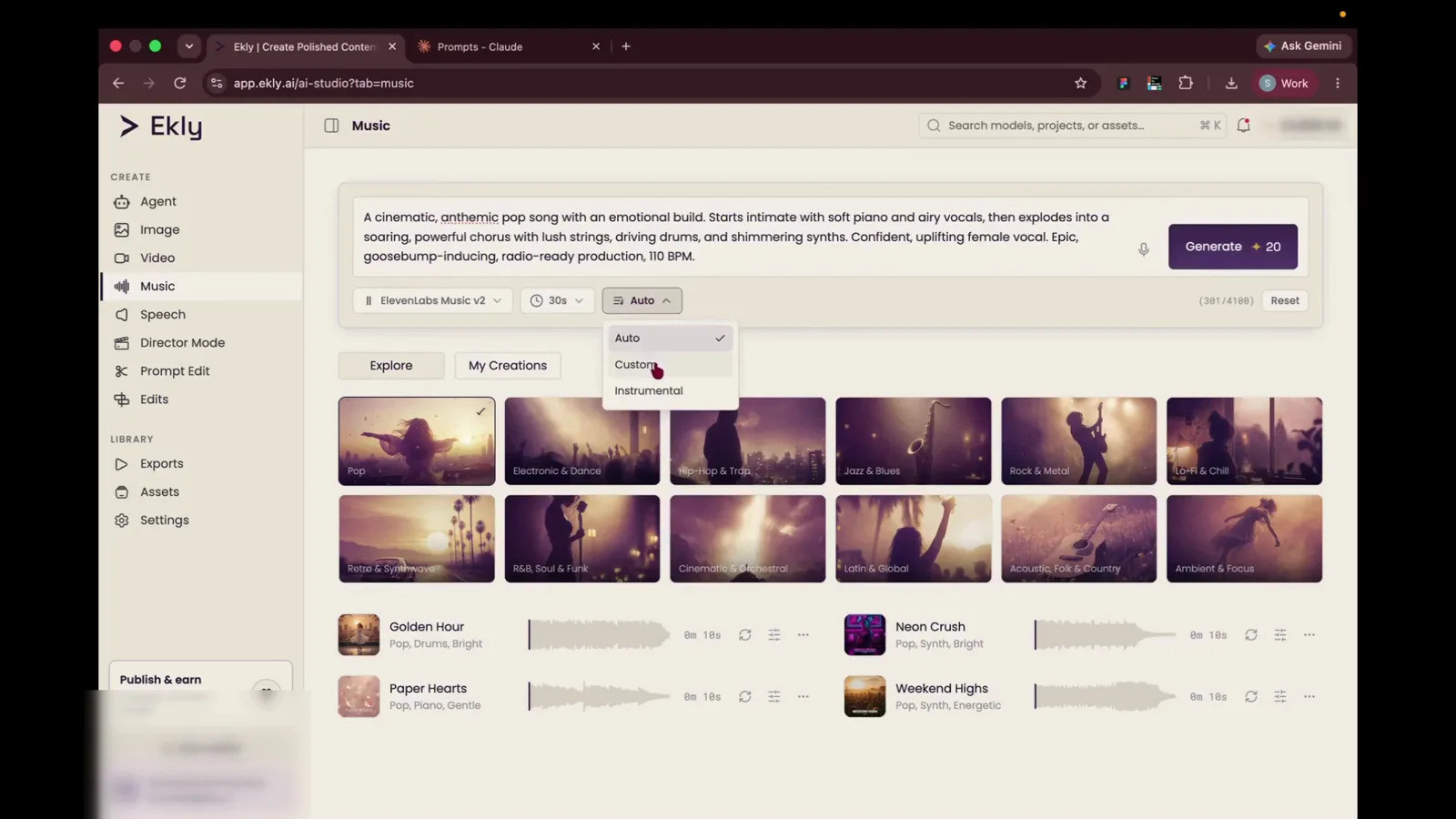
Step 5 “So I want to add in my own lyrics, so I'll use the custom lyrics option, and I'll also paste the lyrics.”
- 6
Copy the lyrics
Return to Claude, select the lyrics block, and copy it.
Lyrics text blockClaude response panelClaude AI Chat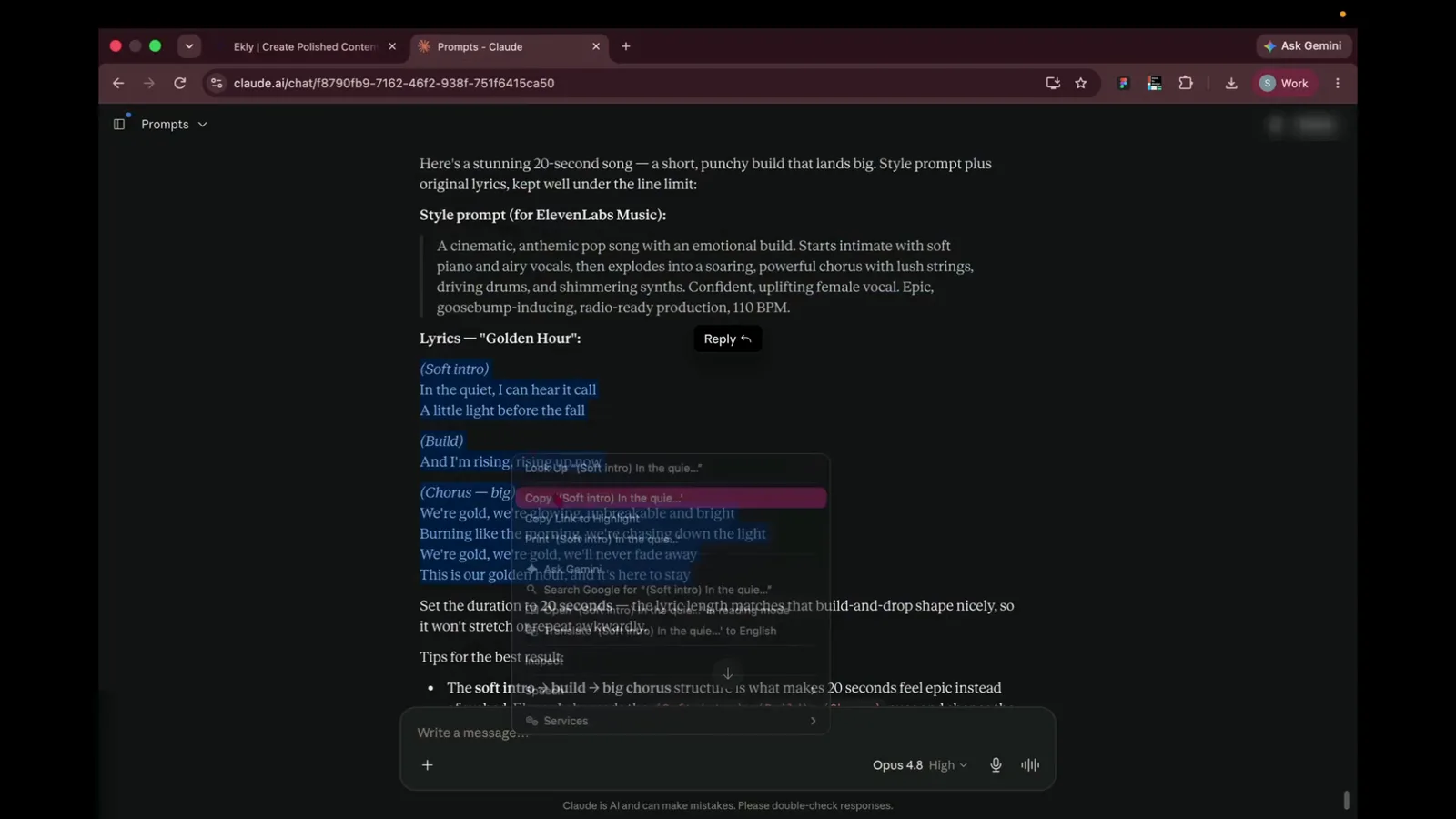
Step 6 “and I'll also paste the lyrics.”
- 7
Paste your lyrics
Paste the lyrics into the custom lyrics field that appears below the style prompt.
Type or paste lyrics here text boxPrompt settings areaEkly AI Studio - Music Tab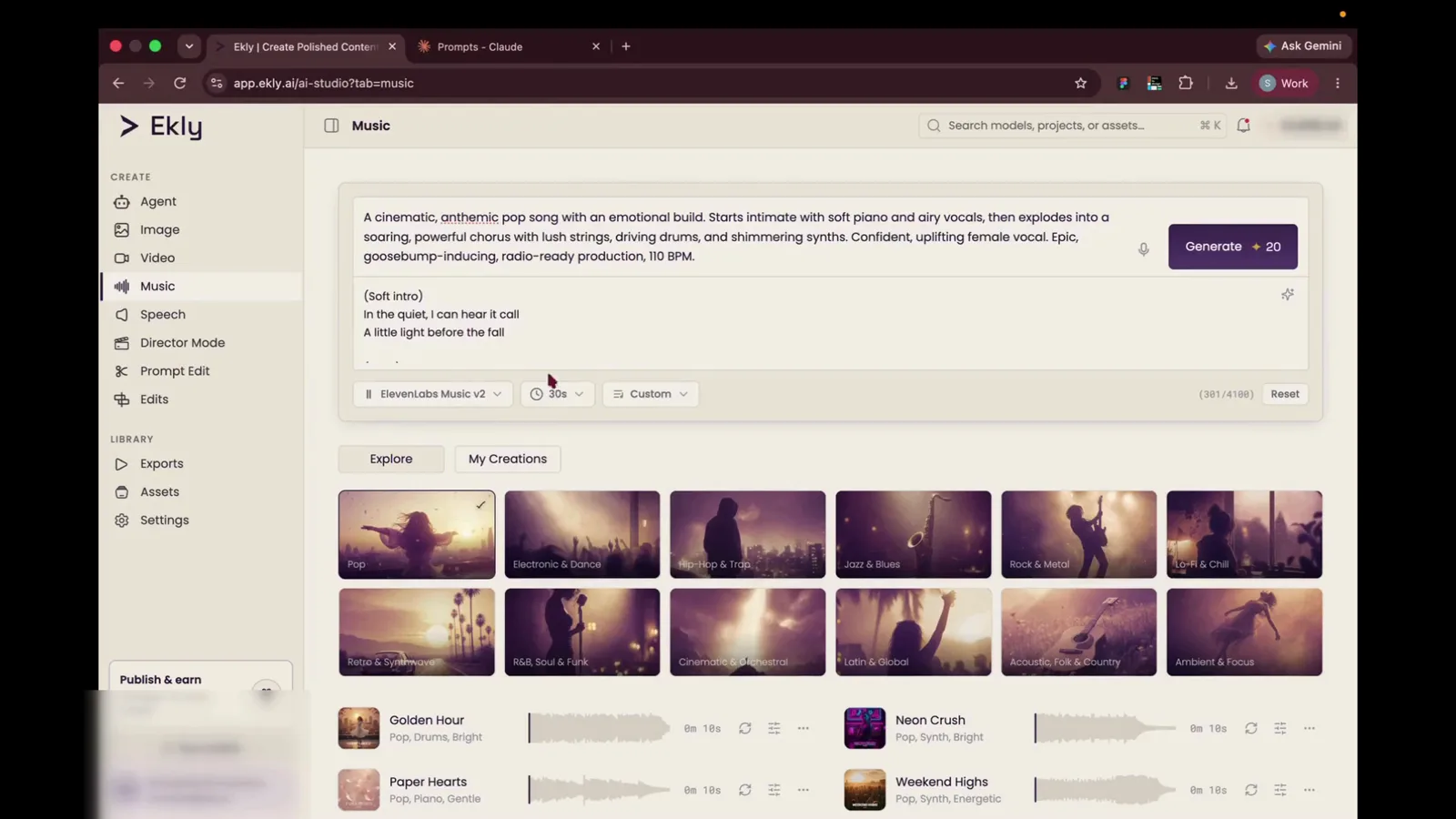
Step 7 “Yeah. So the Claude prompt said that this is a 20-second song, so I'm gonna change it to 20 seconds.”
Generate your track
- 8
Set a custom duration
Open the duration menu and pick Custom so the track length matches what you wrote in the prompt.
Custom optionDuration selection dropdown menuEkly AI Studio - Music Tab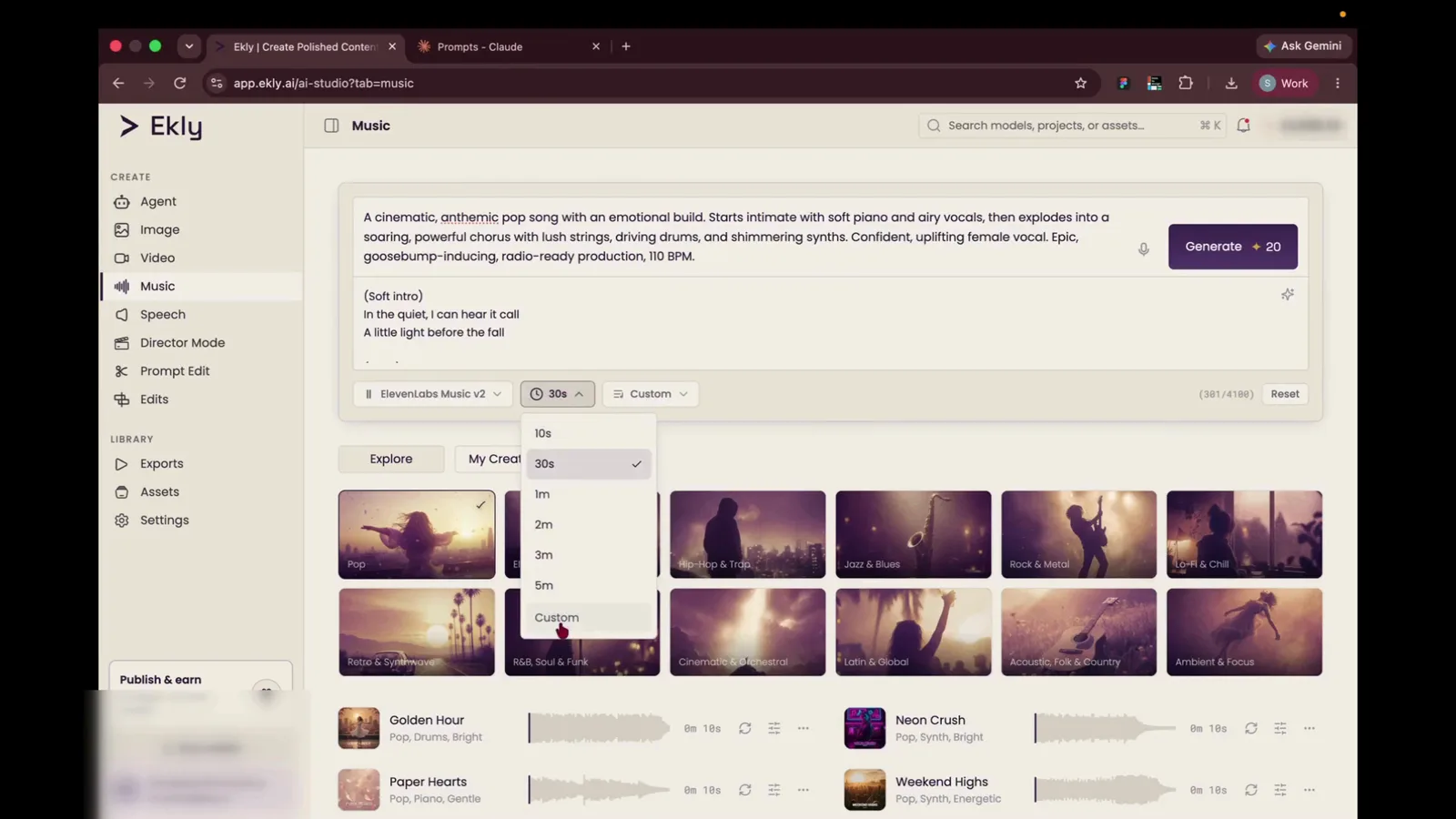
Step 8 “So I'm gonna change it to 20 seconds.”
- 9
Generate the track
Enter the length you want (for example 20 seconds) and click Generate.
GenerateTop right corner of the prompt boxEkly AI Studio - Music Tab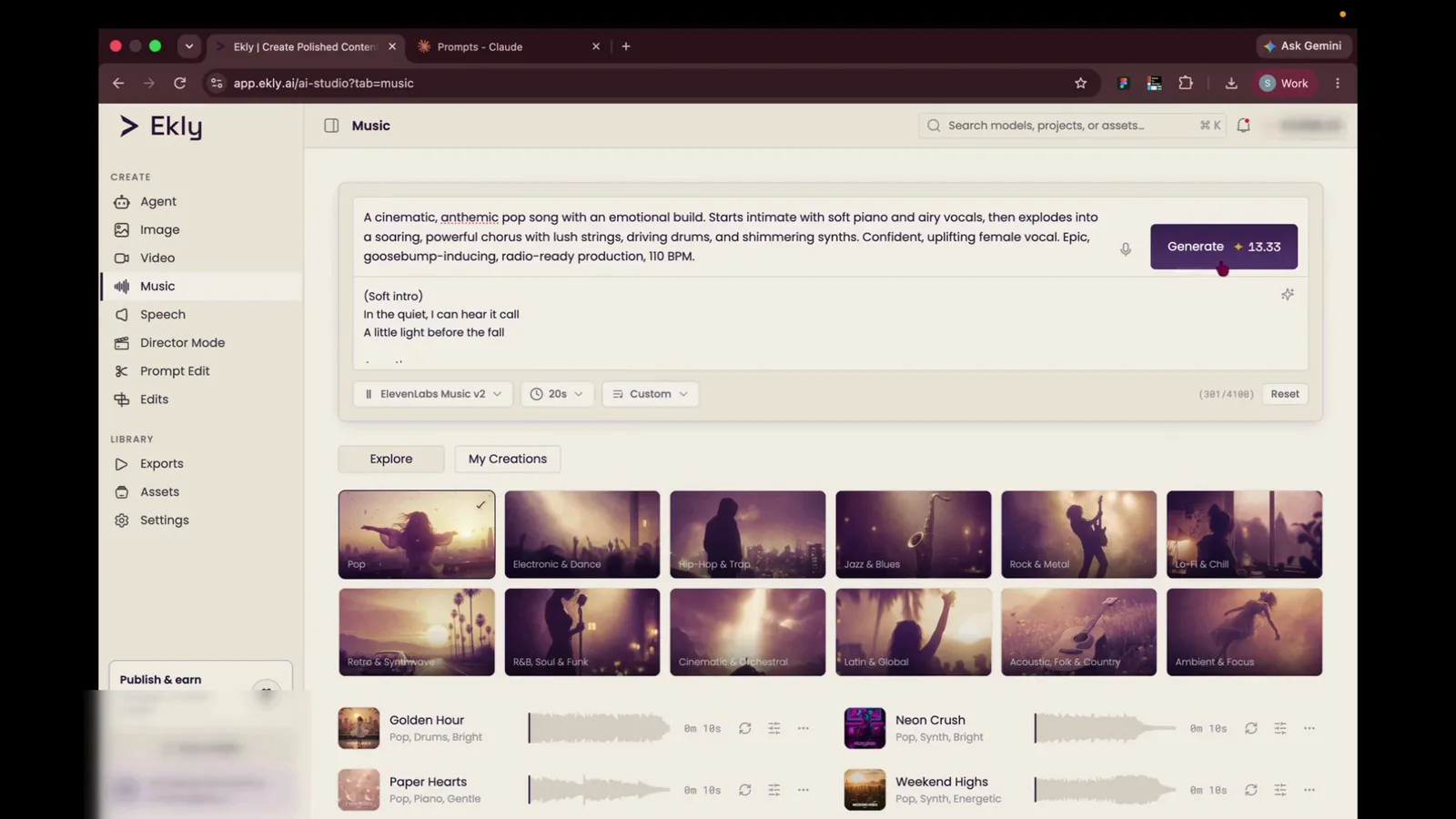
Step 9 “So we hit generate and wait for the result.”
- 10
Listen to the result
When the track finishes, press play on the new row under My Creations to hear it.
Play button on Golden Hour track itemMy Creations listEkly AI Studio - Music TabGenerated result
Edit and refine
- 11
Open Edit Song
Hover the track row and click Edit song to see the breakdown — tags, sections, and lyrics.
Edit song iconTrack action buttons on Golden Hour rowEkly AI Studio - Music Tab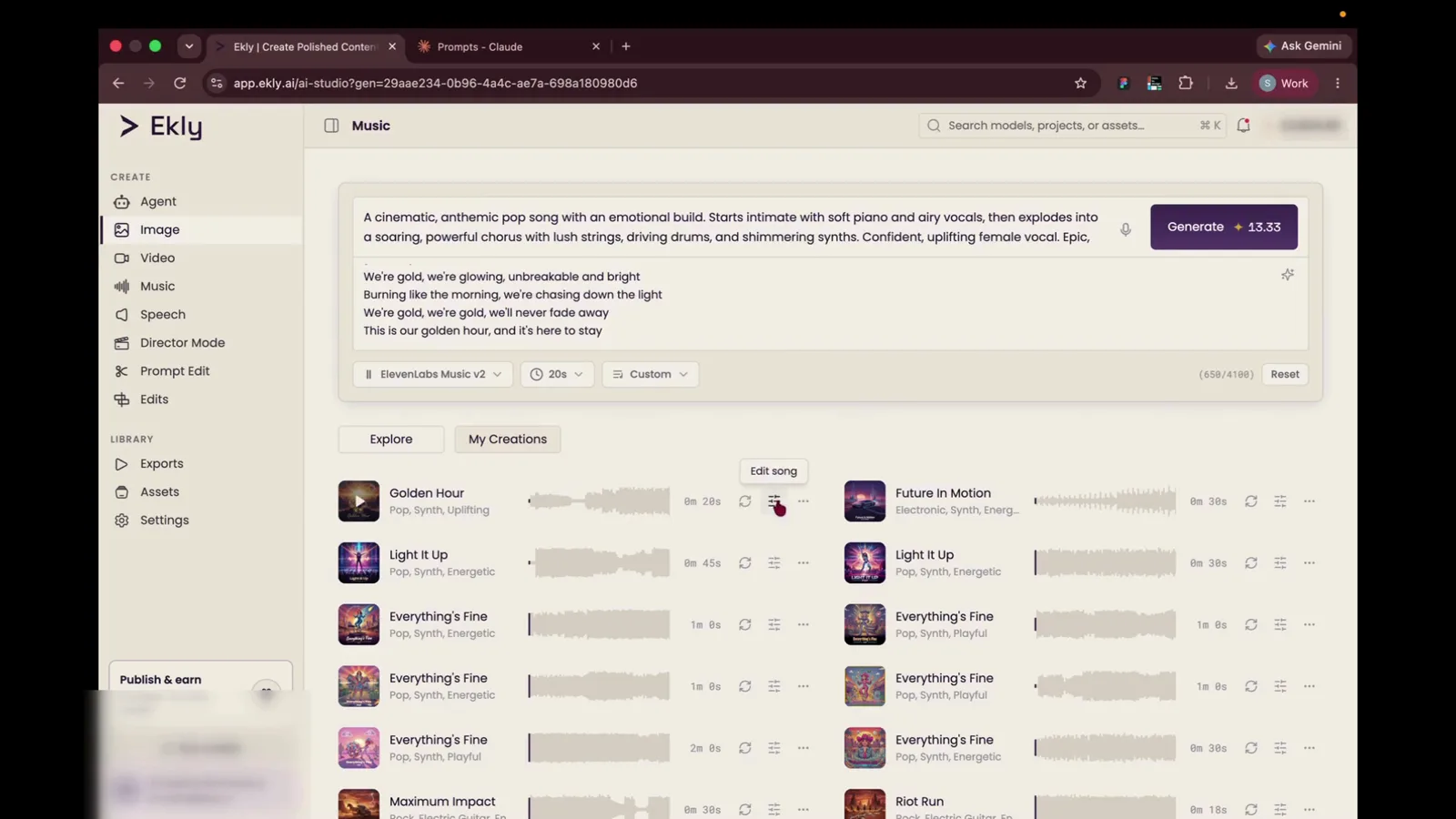
Step 11 “There is an option to edit your song also. So when you click on the Edit Song, you get the transcripts of the song, and you can change it as you like.”
- 12
Tweak sections and regenerate
Adjust include/exclude tags, BPM, or section lyrics, then generate again for a new version of the same song.
Section tags and exclusion parametersEdit Song workspace editorEkly AI Studio - Edit Song View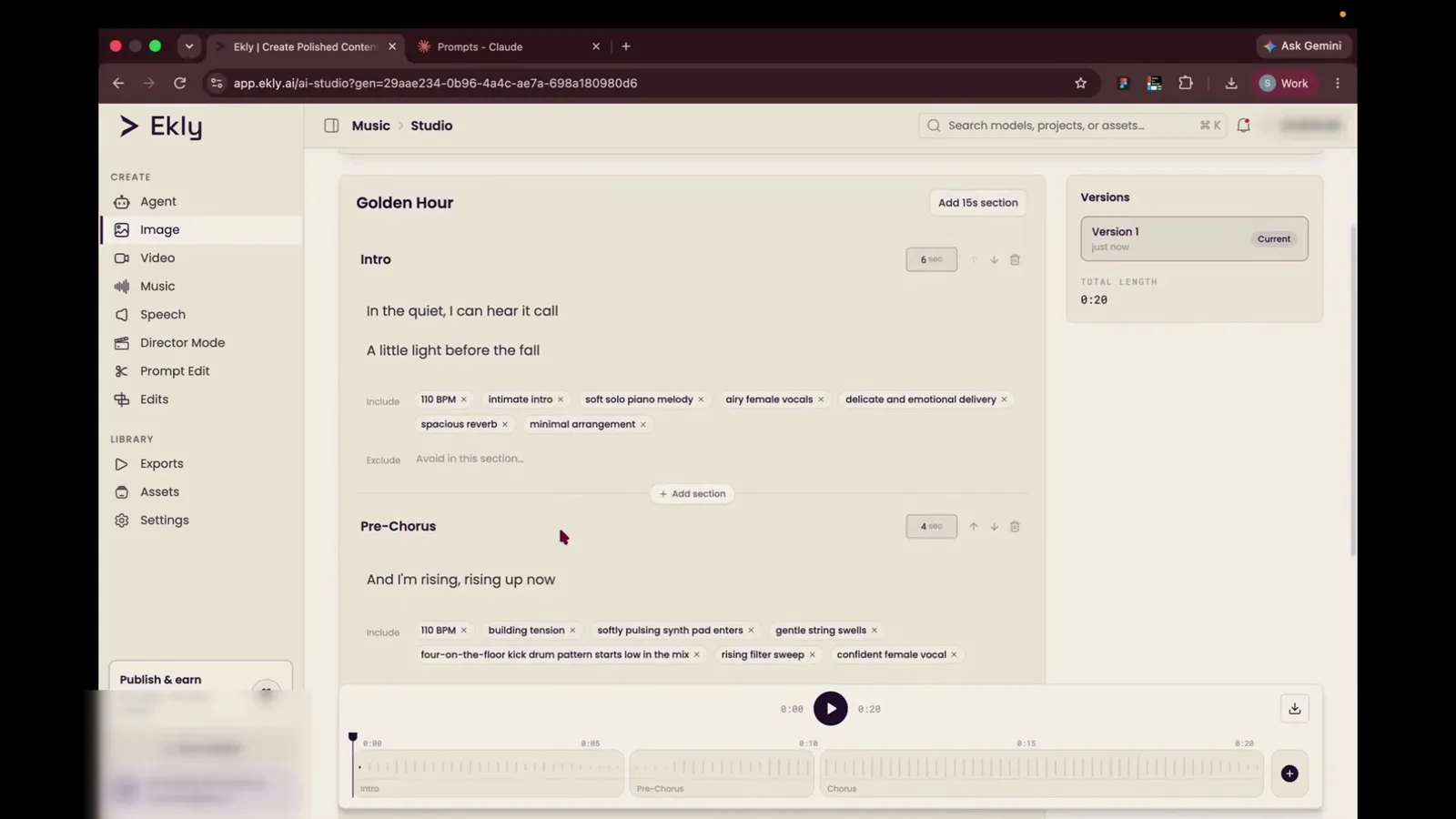
Step 12 “You can change the tags that you want to include or exclude and hit generate again, and you will have a different song, different version of the same song.”