

You can sketch a product commercial without opening a separate editor. Generate a hero still and a multi-angle reference sheet in Image Studio, then switch to Video and let Seedance 2.0 turn them into a 15-second ad.
Product hero image
- 1
Open Image in AI Studio
From the sidebar, open Image under Create — this is where you generate the product still that everything else builds on.
ImageLeft navigation sidebar under Create menuEkly Studio Workspace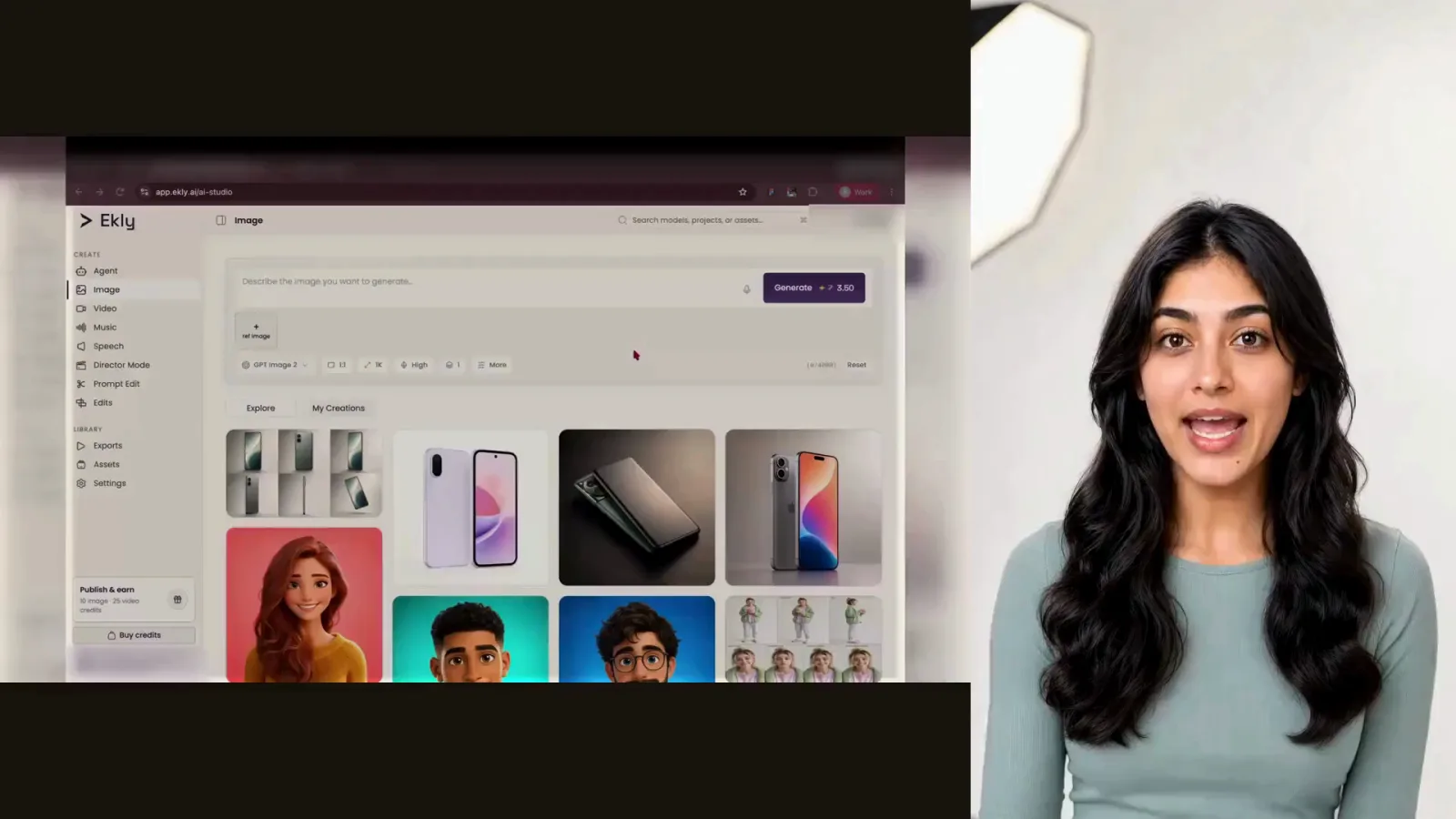
Step 1 “Hey there. Today we'll show you how to make a product video ad using Eckly. Let's say we're advertising a smartphone.”
- 2
Open and save your product hero image
In My Creations, open the product image you generated. When it looks right, click Save so the hero still is available as a reference everywhere else in Ekly.
SaveImage detail modal from My CreationsImage Detail Modal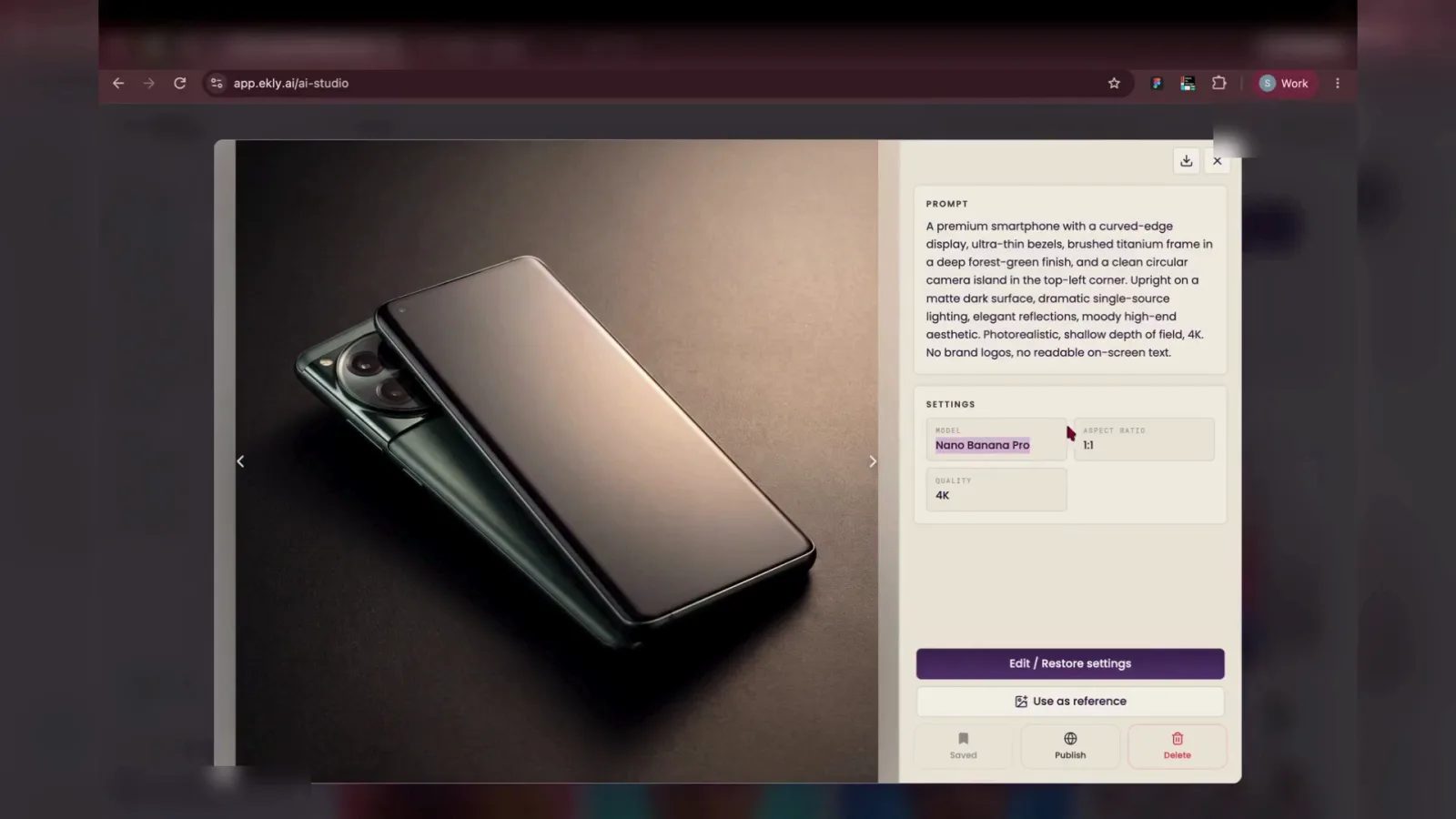
Step 2 “I like the results Nano Banana Pro gives, so I will save that to my assets.”
Angle reference sheet
- 3
Copy the angle sheet prompt from Claude
In Claude, ask for a product angle sheet prompt — one grid with front, back, three-quarter, profile, and floating views of the same phone. Select the prompt block and copy it.
ClaudeClaude response panelClaude AI Chat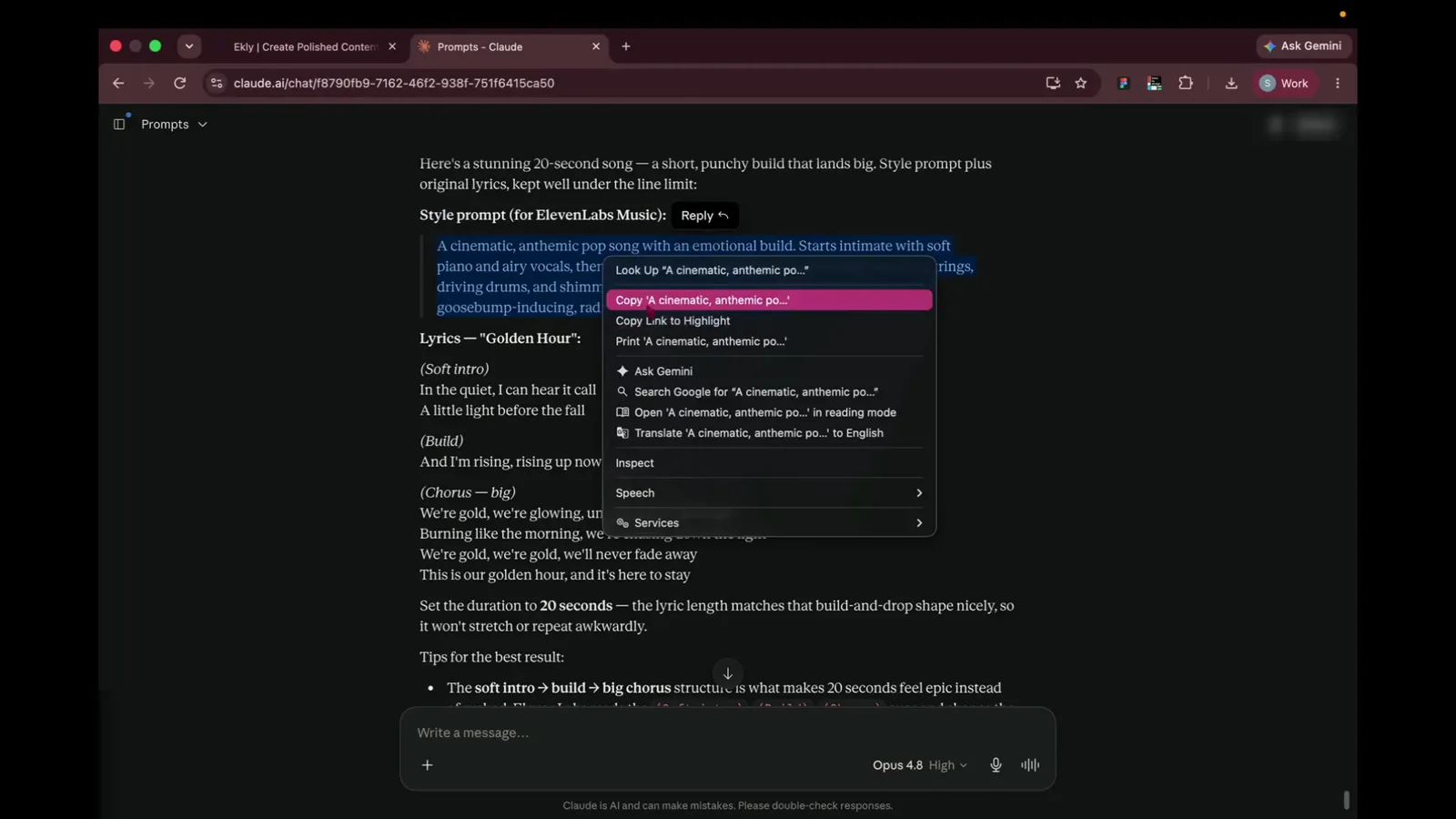
Step 3 “Next, we need an angle sheet, multiple views of the product from different angles.”
- 4
Generate the angle sheet
Attach your saved smartphone as a ref image, paste the Claude prompt into the bar, then click Generate.
GenerateTop right of the Image prompt barEkly Image Studio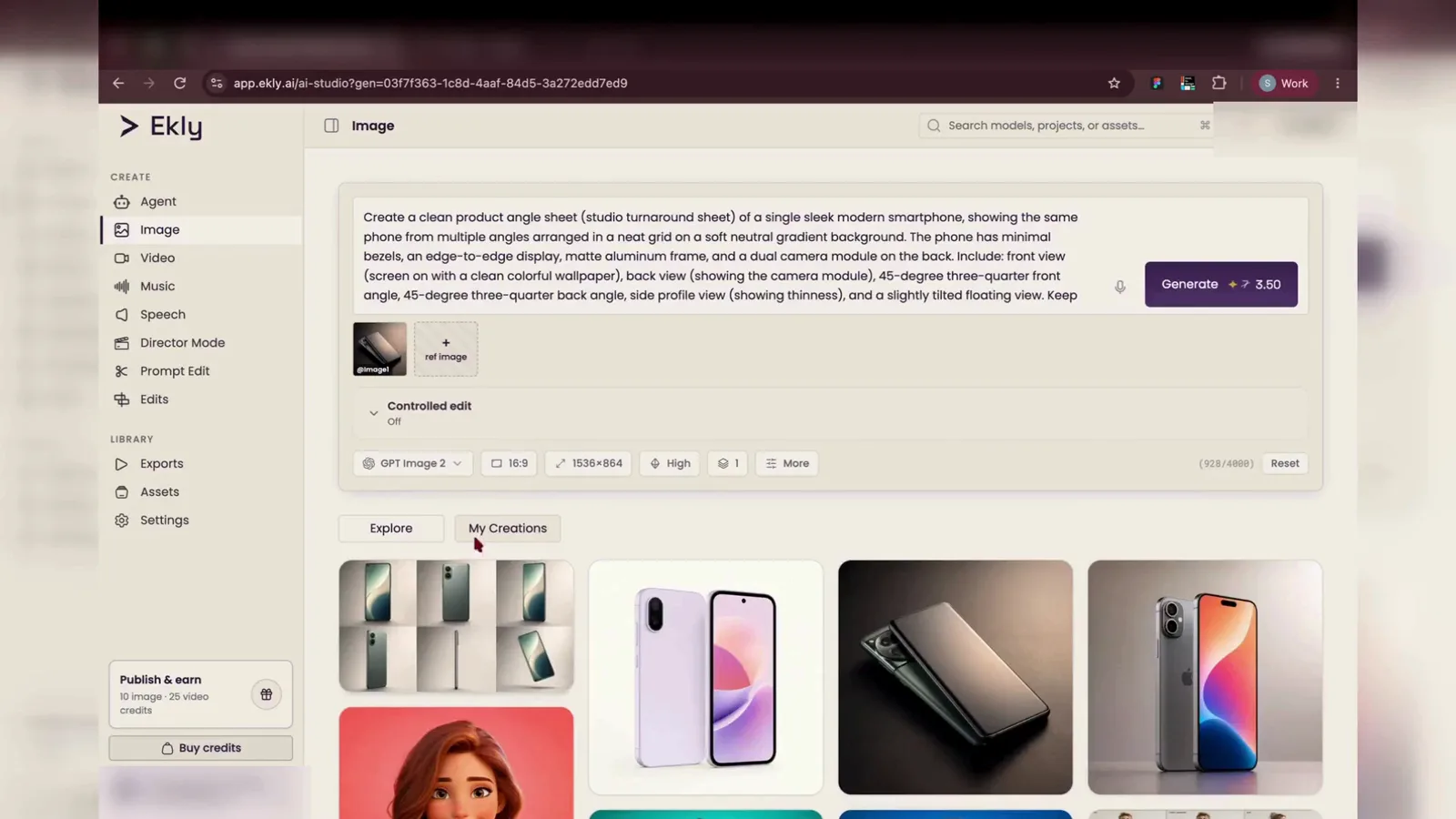
Step 4 “Using the smartphone image as a reference plus a Claude written prompt,”
- 5
Review and save the angle sheet
Open the result, check that every angle shows the same phone design, then click Save so the turntable views are ready when you move to Video.
SaveBottom action bar in angle sheet modalAngle Sheet Preview Modal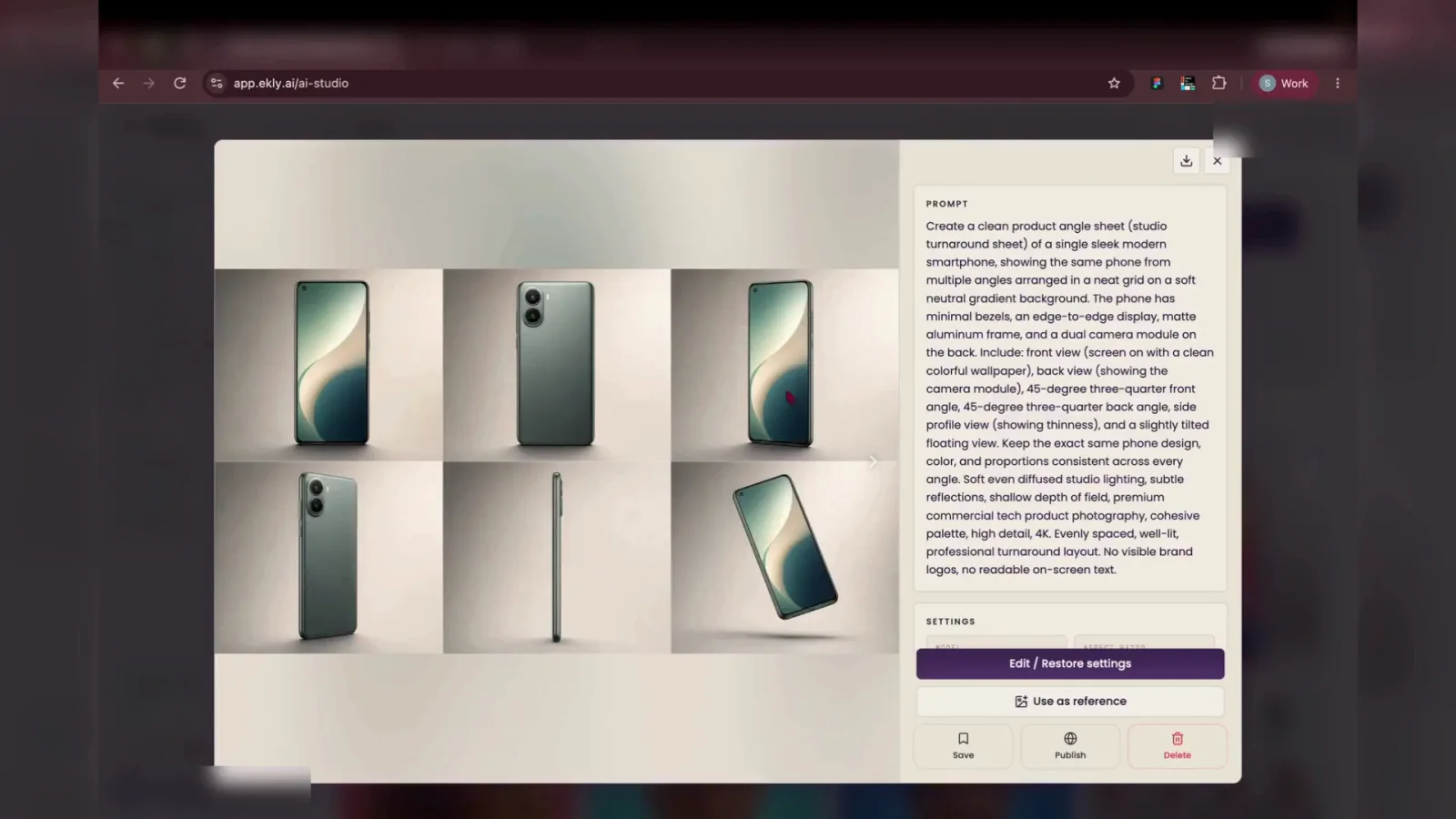
Step 5 “Eckly generates the full sheet, and I will save that too.”
Set up the video ad
- 6
Switch to Video in AI Studio
Open Video in the sidebar — the workspace resets with a fresh video prompt bar, ready for your multi-shot ad.
VideoLeft sidebar under Create sectionEkly Video Studio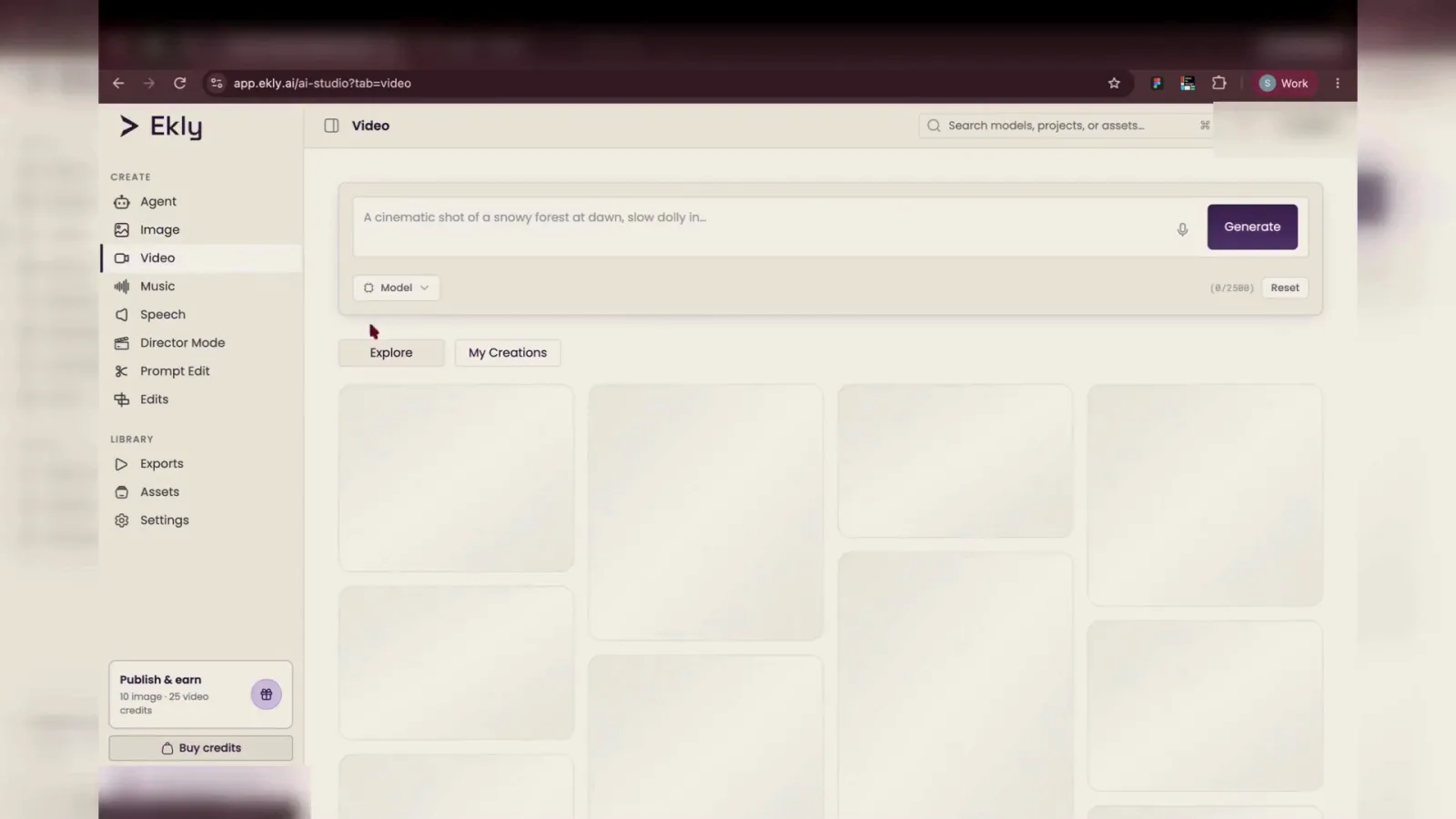
Step 6 “Now for the fun part, a fifteen-second multi-shot product ad.”
- 7
Choose Seedance 2.0
Open the model picker and select Seedance 2.0 — it handles multi-shot product ads well when you attach reference images.
Seedance 2.0Model selector dropdown menuEkly Video Studio - Model Menu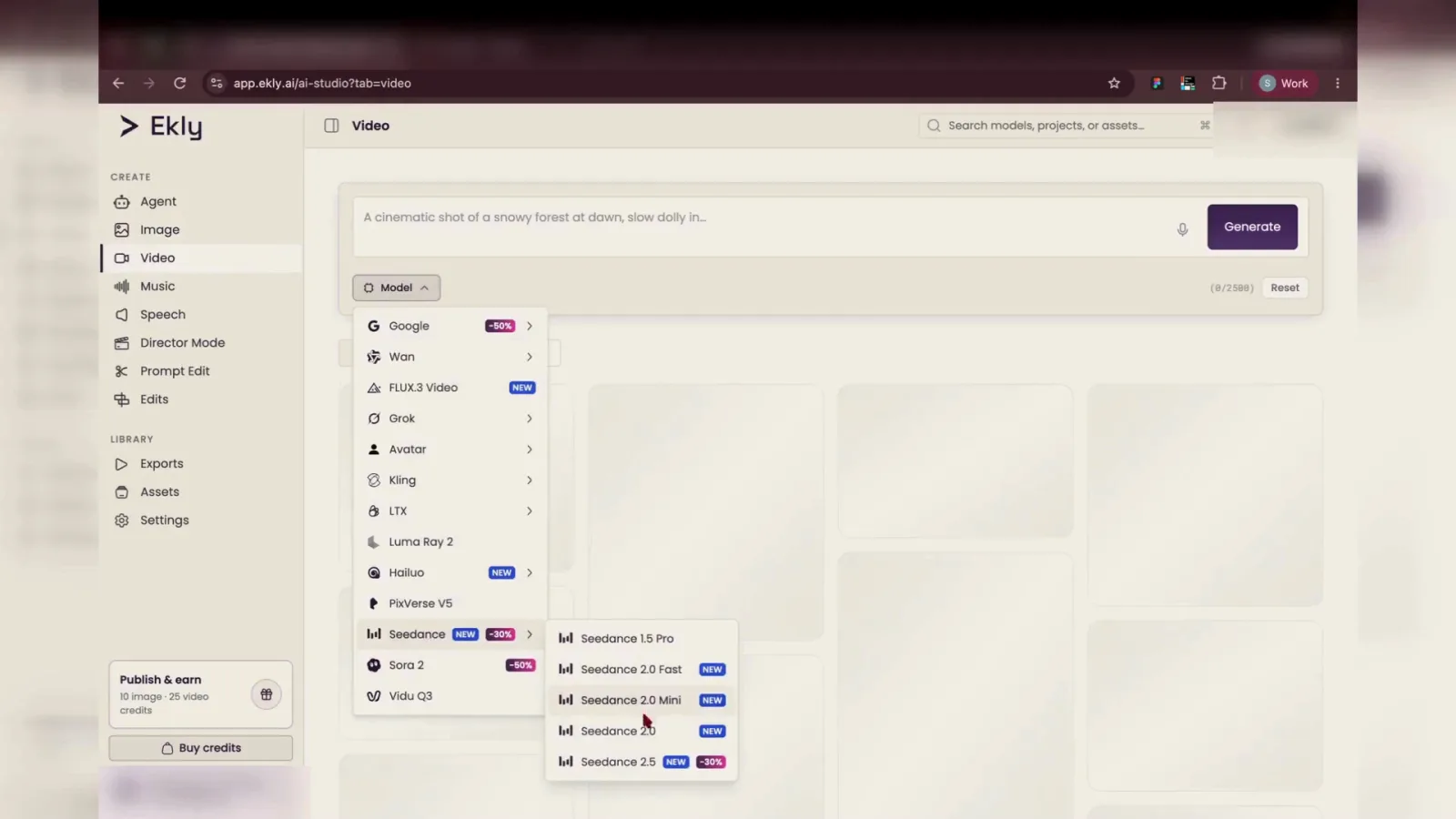
Step 7 “I will use Seedance 2.0 inside Eckly,”
- 8
Set duration to 15 seconds
Open the duration menu and pick 15s — short enough for social, long enough for a few product beats.
15sDuration dropdown list below prompt barEkly Video Studio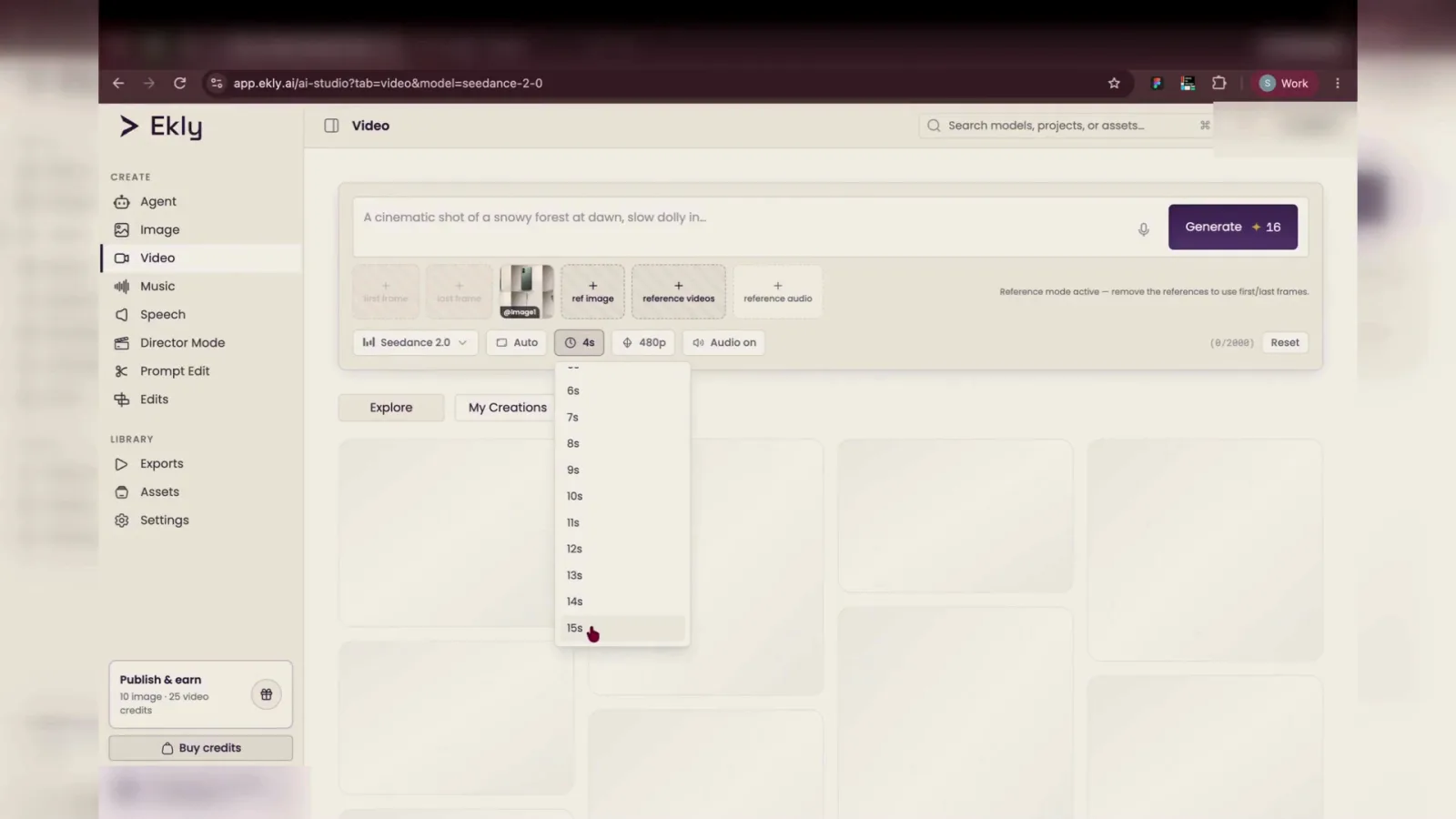
Step 8 “add my reference image, set the length to fifteen seconds,”
Generate and review
- 9
Paste your ad prompt and generate
Attach your reference image, paste the multi-shot ad prompt from Claude, then click Generate.
GenerateTop right side of Video generation panelEkly Video Studio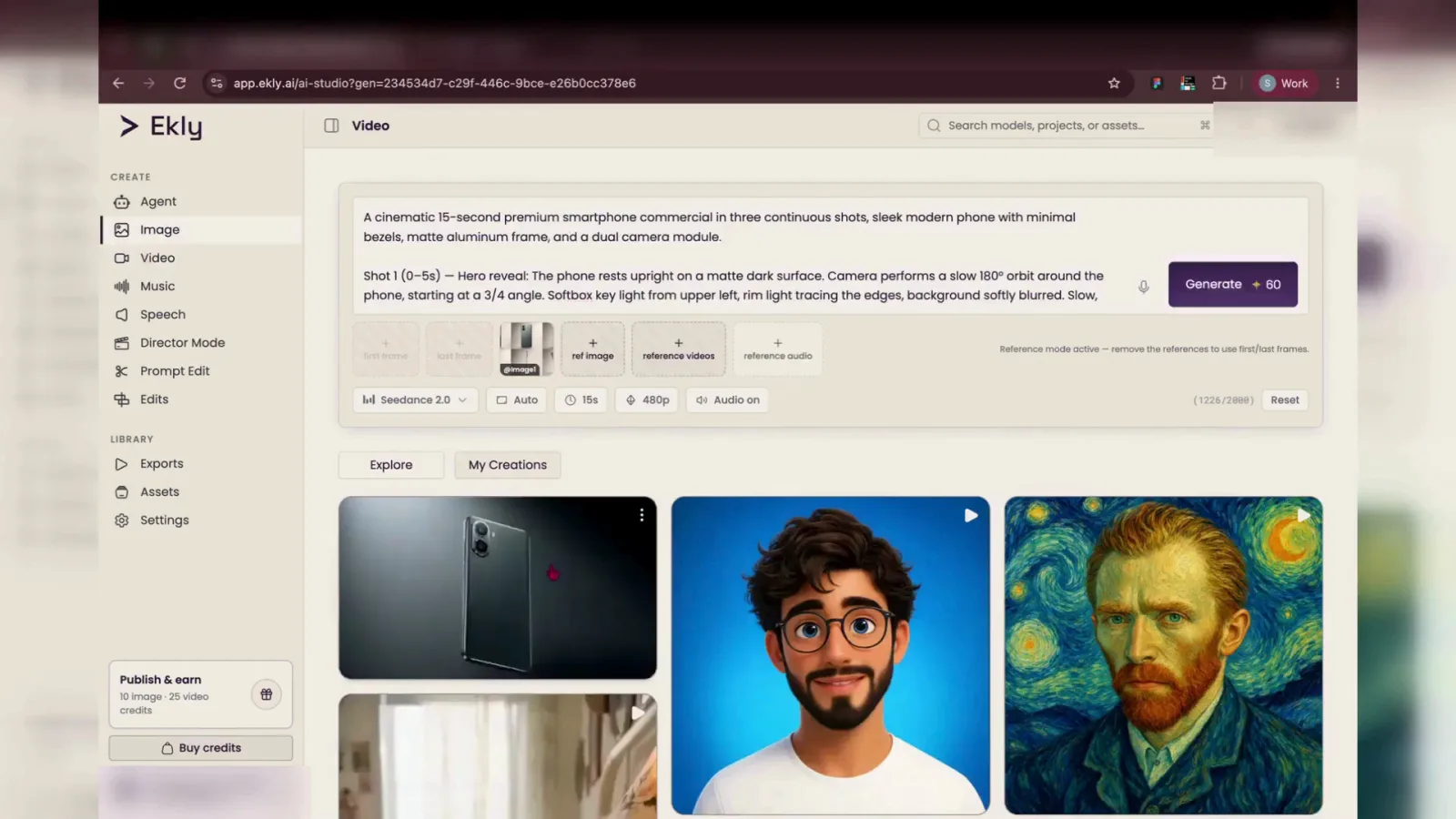
Step 9 “paste in the prompt, and hit Generate.”
- 10
Review the finished ad
When generation finishes, open the preview and watch the commercial play in the result modal before you export or iterate.
Video player canvasCenter preview in the result modalGenerated Video Result Modal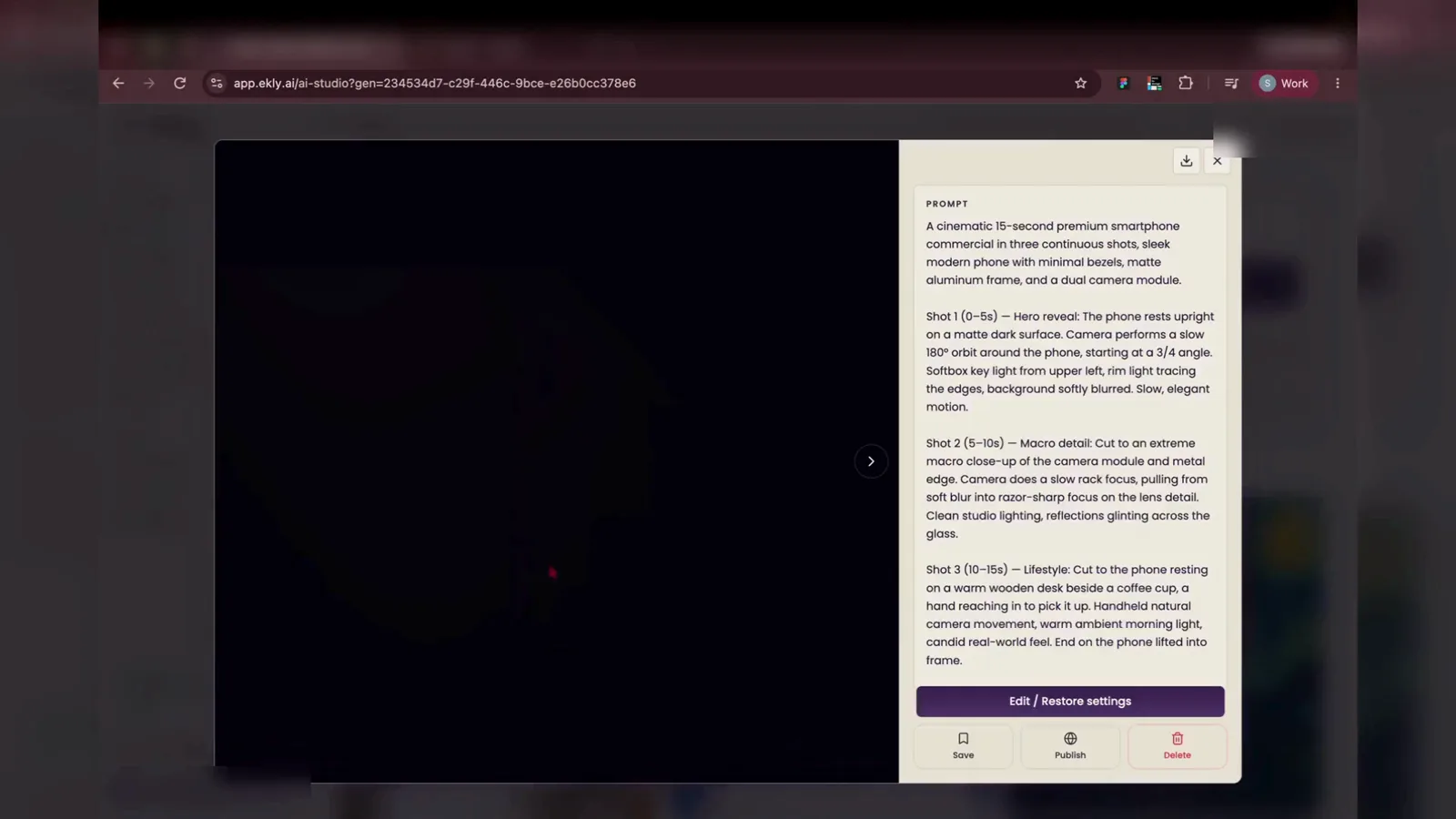
Generated result